2011/06/26

Arduino on the go


Finally I got a suitable USB cable for Arduino. You can see the LED is on, it's blinking!

2011/06/21

Boundary condition in Finite different scheme

It's time to keep track of my progress in PhD program.

While solving the 1-D in duct problem with finite different (FD) scheme (please go to the project page for more accurate detail: http://acoubulence.zxq.net/), implementing the boundary condition, as well as the numerical integral, is a tricky part to such a beginner like me.

The homogeneous Dirichlet condition is sort of easier to make; but the homogeneous Dirichlet condition at the center of the duct is not that straightforward. Since the FD scheme I am using now is central FD, an extrapolated point is set to describe the derivative of the center point, but the calculated results were incorrect.

After talking with Ardeshir I am going to use forward difference at the center point instead. Actually I am still curious about what the results will look like if using two FD scheme in one simulation. I will try to show the results (hope are positive ones) in the next post.

2011/03/28

Running Ubuntu on Compaq CQ61

So you thought Linux works with every piece of hardware these days? Sorry, hardware vendors still don't pay much attention when it comes to enable their stuff correctly on the platform. I wont go in to a religious flame-war telling who's fault that is. We can probably blame the Linux community and the hardware industry equally. In this post:

  • Getting the Nvidia G103M graphics card working on Ubuntu 9.10
  • Getting speaker sound to work on the Compaq CQ61

Problem target: Compaq CQ61 with the graphics card Nvidia GeForce G 103 M where graphics card is not automatically identified in Ubuntu 9.04 Problem solution: The following solution works for me, but I take no responsibility nor making guarantees that it works in your case. Credits to zibuntu in the Ubuntu community for providing the binary file that actually solves the problem "under the hood". To start with, the typical symptom looks like this: You may have different results with this computer model depending on which Linux distro you try out. Some distros will not work at all, but Ubuntu 9.04 will at least give you a working environment, but not fully utilize screen resolution and colors. You will also have problems with applications, as your Ubuntu apparently don't really know the actual size of your screen. Nvidia provides some drivers that are supposed to work, but if you run a simple manual installation you will end up with 6 small screens. Not good. Since it is a manual installation, basic users may be stuck and dont know how to reverse. zibuntu have a post in the Ubuntu forum that solves the problem. Heres the short story on how to solve the problems:

  1. As of Ubuntu 9.10 (currently in beta phase), your graphics card will be detected and you will be offered a "restricted driver" via the menu. Go to >System>Administration>Hardware drivers and enable the restricted driver. If you are a basic user, you must also know that this option gives you a secure way to revert simply by later on disabling the driver in the very same Nvidia dialog. This solution assumes you are running 9.10.
  2. Now, if you only complete step 1 you will have the "6 screens" effect after next reboot. And heres where the shortcut comes in. Download zibuntusedid.bin.zip.
  3. Unzip it and place edid.bin in the /etc/X11/ directory. From a terminal: go to the directory where you downloaded edid.bin (if its your desktop, type cd /Desktop and hit ENTER) . Then type sudo cp edid.bin /etc/X11/. You will be prompted to write your password, and after doing that press ENTER. By the way, a terminal can be opened from the menu >Applications>Accessories>Terminal.
  4. Now the file is copied to /etc/X11/. One thing that happened after step 1 is that your xorg.conf file (located at: /etc/X11/xorg.conf) was modified. Open it up in a terminal with the nano texteditor with root permissons like this: sudo nano /etc/X11/xorg.conf. You will be prompted to write your password, and after doing that press ENTER. At the bottom of this file you will see something like this: Section "Device" Identifier "Device0" Driver "nvidia" VendorName "NVIDIA Corporation" BoardName "GeForce G 103M" EndSection Dont worry if it doesnt look exactly the same. With your arrow keys, go down to the line above EndSection and add option "CustomEDID" "DFP-0:/etc/X11/edid.bin" above it, making it look like this: Section "Device" Identifier "Device0" Driver "nvidia" VendorName "NVIDIA Corporation" BoardName "GeForce G 103M" option "CustomEDID" "DFP-0:/etc/X11/edid.bin" EndSection

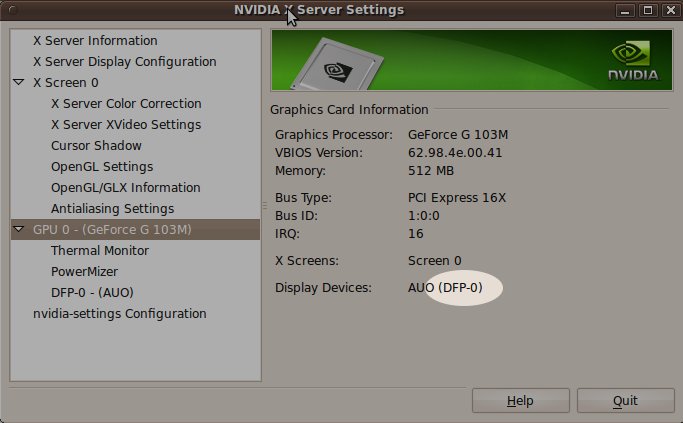
    The bold text is only to clearify where to write it. If you copied the text line with CTRL+C, you can paste it in with CTRL+SHIFT+v. Save by hitting CTRL+o. The one thing that may go wrong here is that the customEDID may not be the same (DFP-0) on you on your computer. Before restarting, you can verify it in the Nvidia settings dialog now located in >System>Administration>Nvidia X server settings. If not the same, it might work..or not. I dont know.nvidia
  5. Restart your computer.
  6. If you run in to problems, let me know.

End of post. I will continue with a full soundcard solution when 9.10 have been released. Soundcard in Ubuntu on the CQ61 is known to work with headphones, but not the with speakers.